From headline styles to JSON, there’s a format for the little edits that add up. Try a few here.
Input
A Better Way to Edit Text
Result
a-better-way-to-edit-text
Headlines and casing
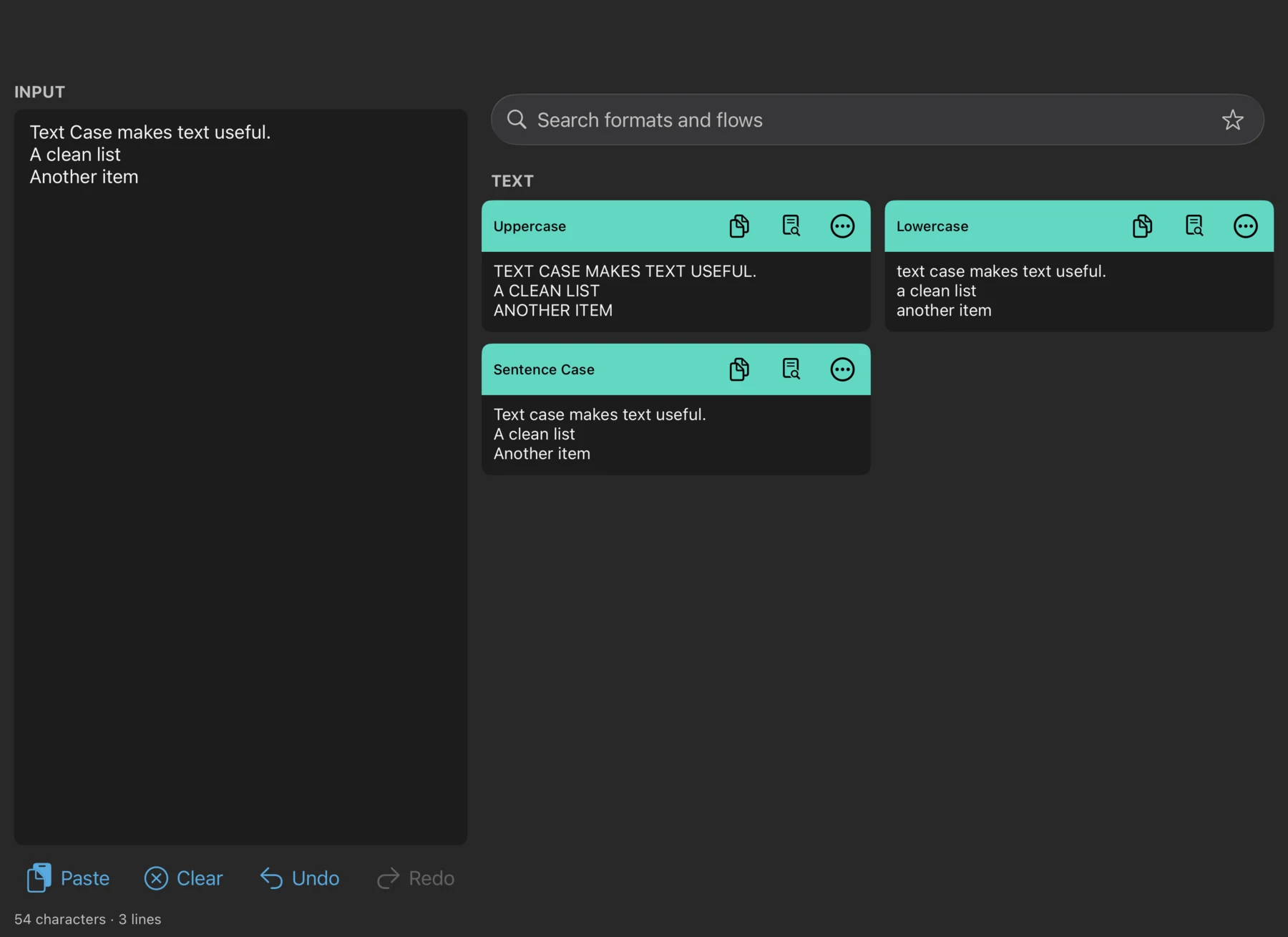
Title case for AP, APA, AMA, Bluebook, Chicago, The Guardian, MLA, The New York Times and Wikipedia. Switch to sentence case, uppercase or lowercase, or capitalise the first letter of each word. Add names and brand spellings to your personal dictionary.
Whitespace and lists
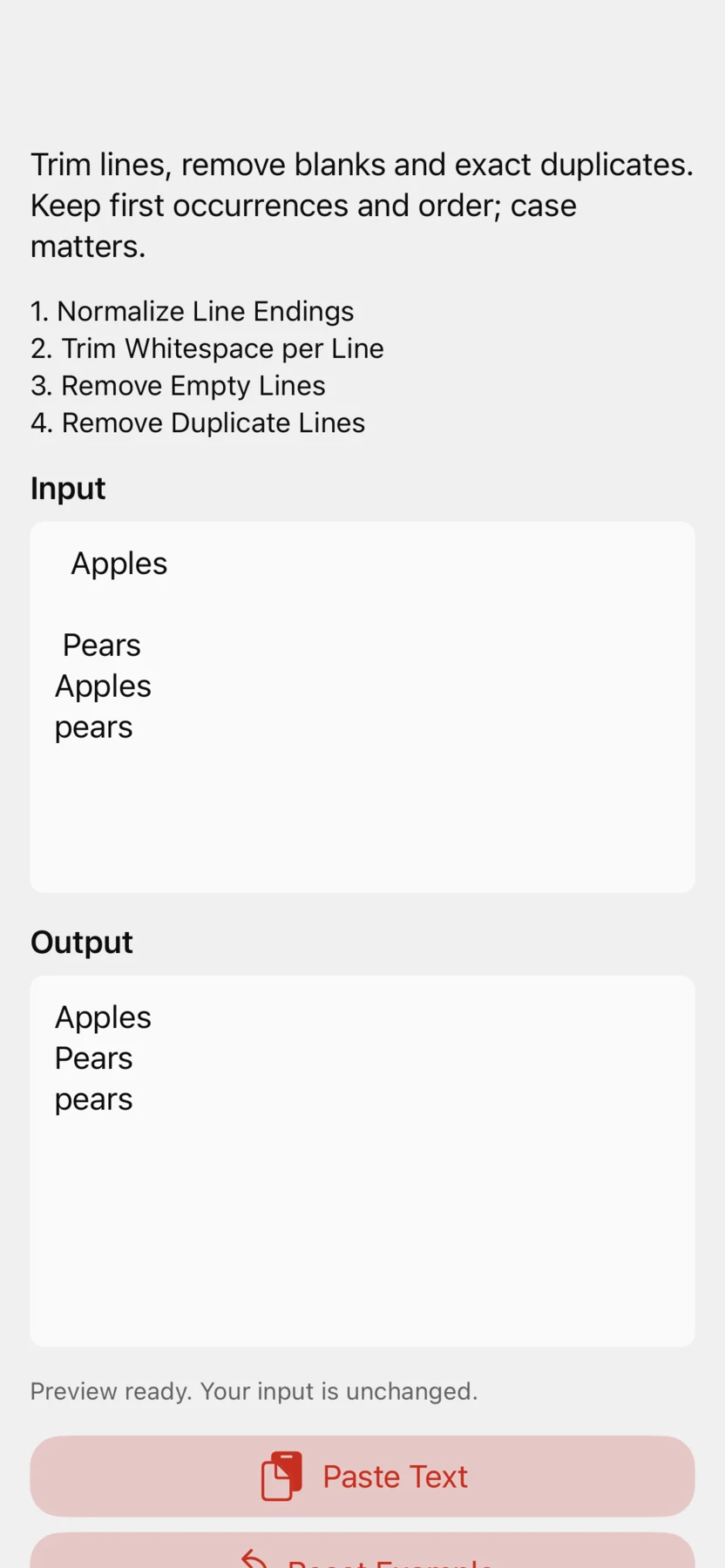
Trim each line, collapse repeated spaces, remove blank or duplicate lines and normalise line endings. Sort lines in either direction, or remove whitespace or line breaks entirely.
Markdown and HTML
Turn pasted lines into a numbered list, a bullet list or a block quote. Wrap a snippet in a code block, convert Markdown to HTML or strip HTML tags.
Code and JSON
Switch between camelCase, PascalCase, snake_case and kebab-case. Indent JSON for reading or minify it for a compact payload.
URLs and encoding
Turn a title into a URL slug, percent-encode or decode text, or convert to and from Base64.
Counts and hashes
Count words, characters or lines. Check character counts without whitespace or line counts without blank lines. Generate hashes including MD5, SHA-256 and SHA-512.
Punctuation and playful text
Switch between smart and straight quotes. Try Unicode styles such as script, small caps, strikethrough and circled letters, or turn words into hashtags or emoji.
Try edits in Scratchpad
Paste text once and compare results from formats and saved flows. Search by name, filter to favourites with the star, or pick a recently used transformation.
Open a complete, selectable preview before copying or sharing.
Choose Use as Input to carry a result into the next edit. Undo lets you step back.
Choose list or grid view. The input and results sit side by side when there’s room, and stack in smaller windows.
Save a sequence as a flow
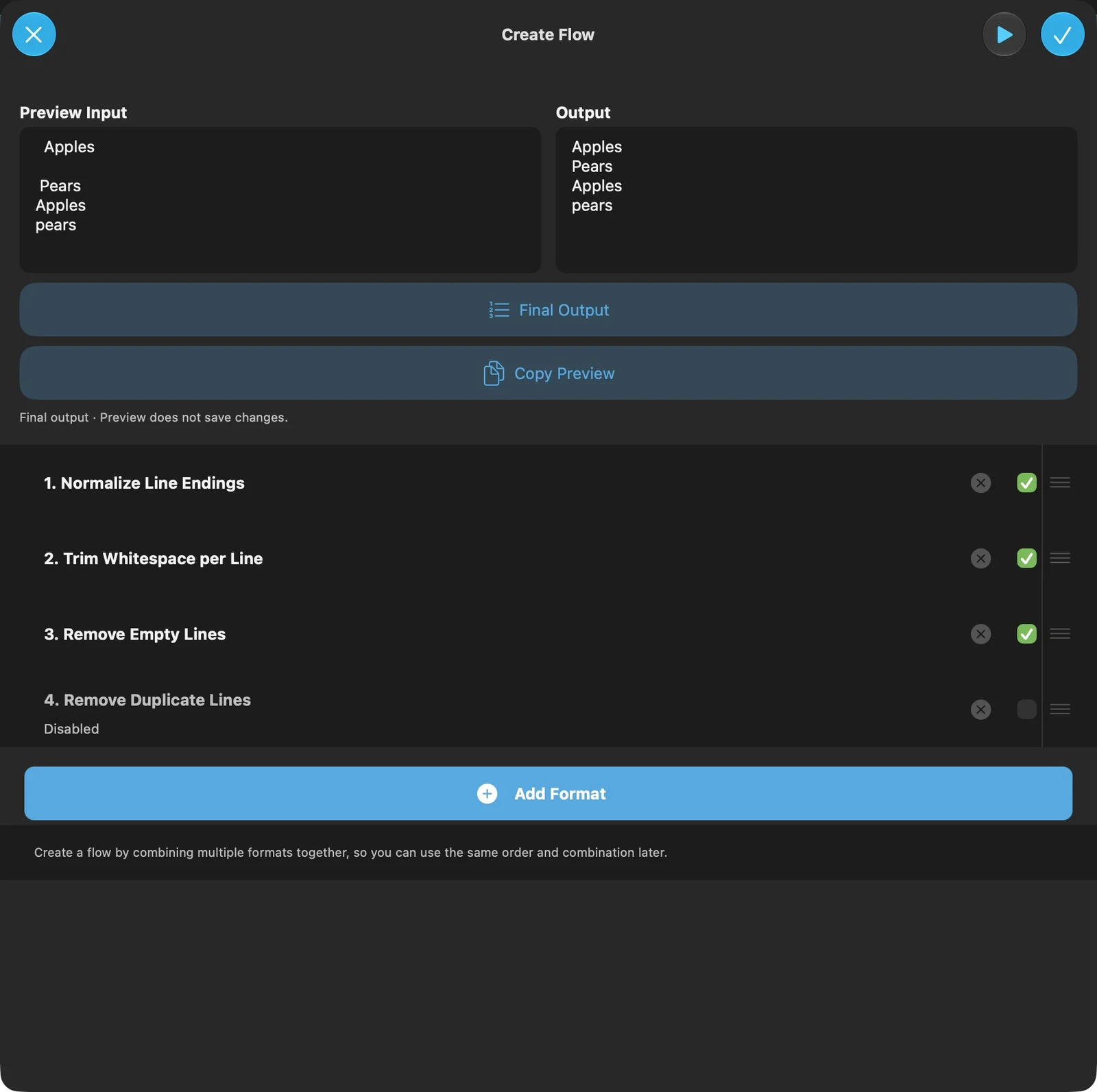
Chain the edits you repeat. For a newsletter list, trim each line, remove blanks and duplicates, then turn the result into Markdown bullets.
Add a prefix or suffix, replace or remove matching text, or split and join lines with a separator you supply.
Reorder numbered steps and preview intermediate results or the final output. Disable a step while keeping its settings.
Try five built-in templates for pasted text, headlines, lists, URL slugs and Markdown quotes. Edit the example and copy the result before deciding whether to save a flow.
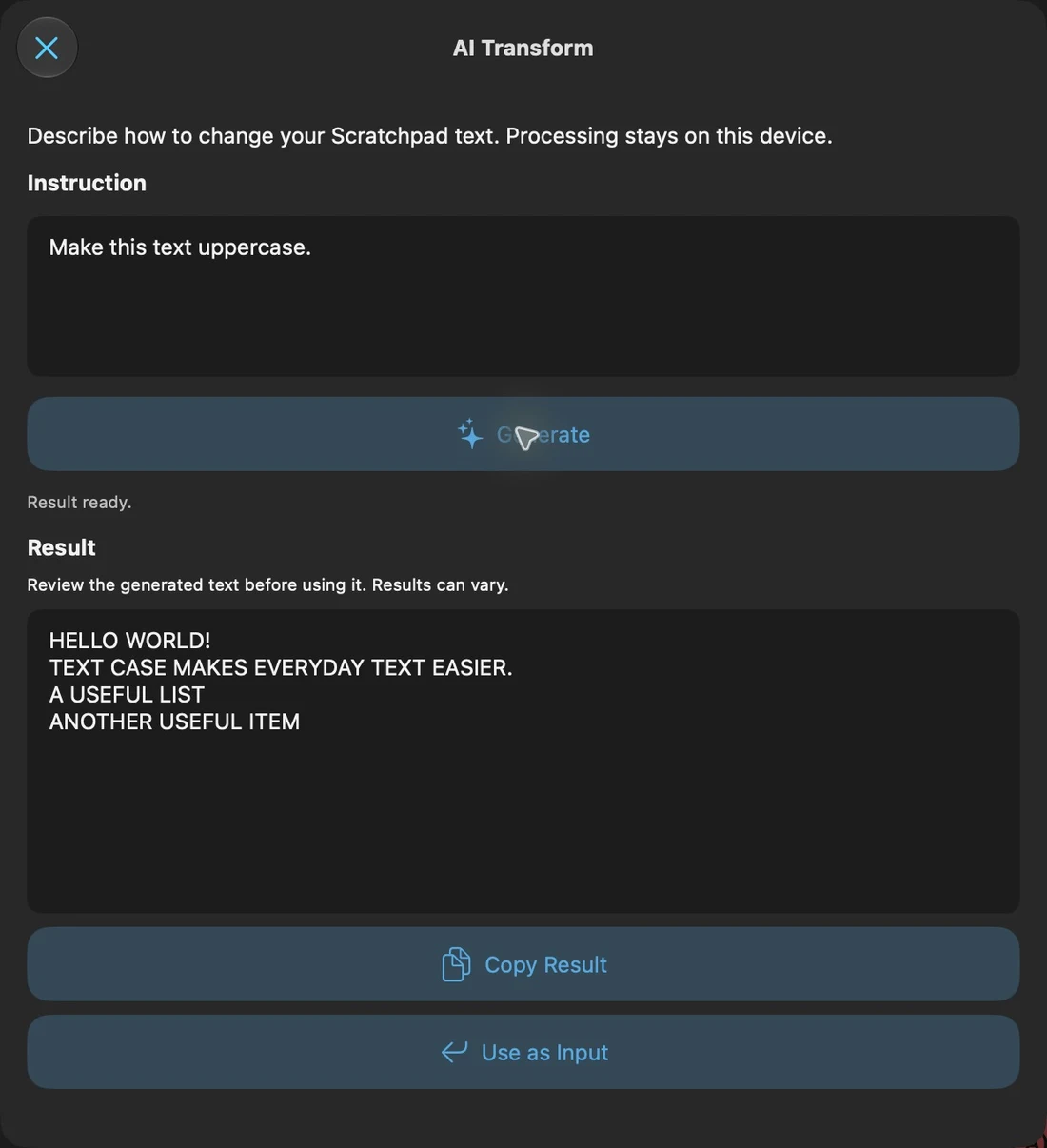
Ask AI Transform to shorten a paragraph or turn American spelling into British spelling. Generate a result in Scratchpad and review it before copying it or using it as input.
For a repeat job, save the prompt as a named AI format and add it to a flow alongside standard steps. Each saved flow step keeps a copy of its prompt.
AI generation runs on a supported device with Apple Intelligence enabled and the model available. Run flows with AI steps in the main app.
Use Text Case where you work
Mac menu bar
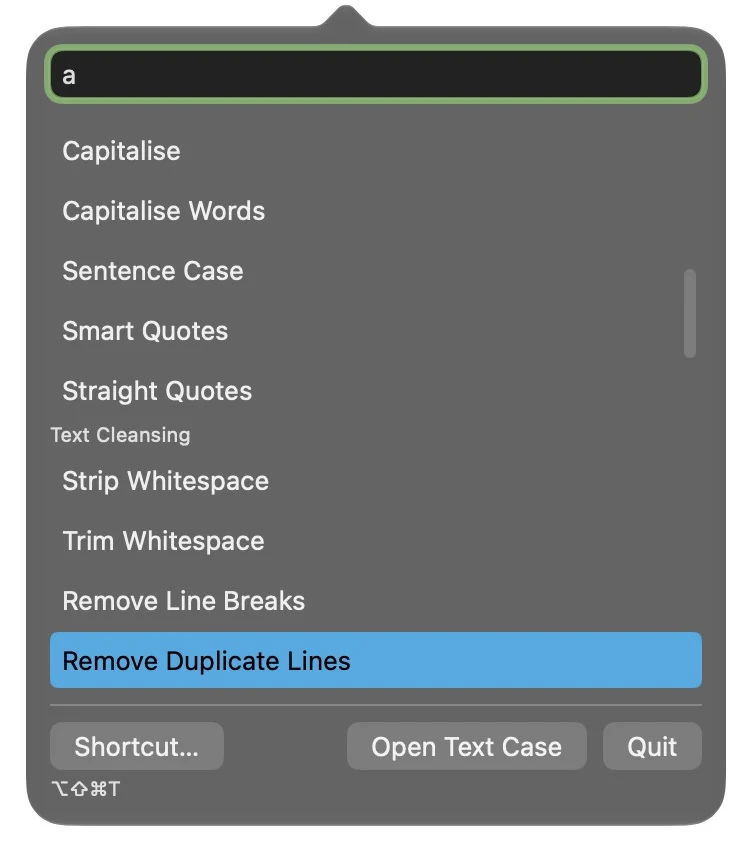
Copy text, press ⌃⌥⌘T and search for a flow or format. Paste the result into the app you were using, or restore your previous clipboard if it still holds that result. You can change the shortcut.
Share sheet and Shortcuts
On iPhone and iPad, select text in another app and choose Convert Text in the share sheet. Use supported formats and saved flows in Shortcuts for edits you want to automate.
Mac Services and terminal
Apply supported formats to selected text through macOS Services. The standalone textcase CLI accepts piped text or a direct argument and prints the result for use in scripts.
Use iCloud Drive to sync flows across devices when available. Back up the whole collection from Flow Storage, or export a single flow to share.
Open a .textcaseflow file in Files or Finder, or drop it onto the Flows list. Each import adds an editable copy and keeps existing flows. Flow Storage also lets you restore the last backup if you need it.
 Text Case